Shaders Overview
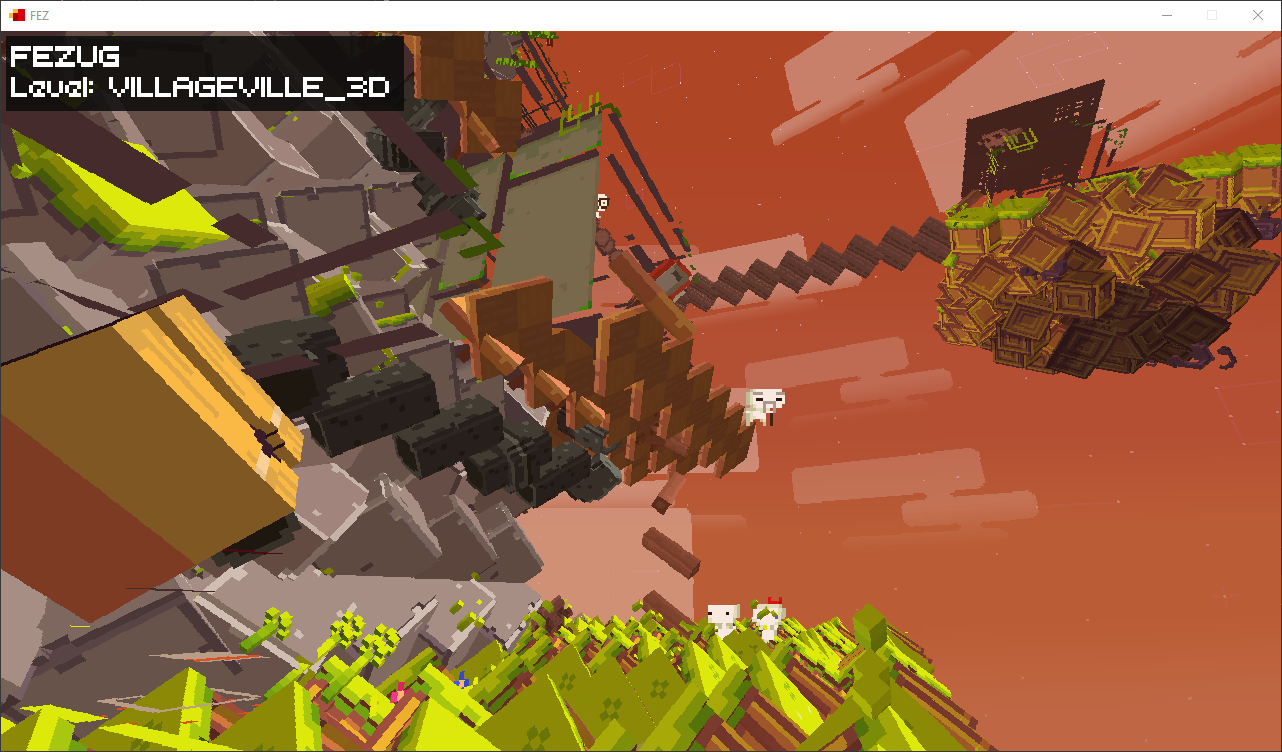
Hey, what could possibly go wrong here?
This guide page covers a fairly complex topic. If you’re not familiar with shaders and are encountering them for the first time, check out this tutorial.
FEZ uses shaders for special effects and post-processing. Those are compiled in the bytecode and stored as .fxc files in the Effects/ subfolder. FEZEditor can't edit, preview, or decompile those files!
But thanks to the FEZFX project, you can explore what those shaders are all about in this game.
FEZRepacker and FEZEditor also extract .fxb files along with .fxc shader files. These are legacy MonoGame Graphics Effects shaders for the version of the game developed using the MonoGame. They are not covered on this page.
FEZFX
The FEZFX project contains reconstructed and readable HLSL source code.
Shader sources are stored in its Effects/ directory as .fx files.
Shader Types
There are several types of shaders that the game uses:
- Post-processing - e.g. inventory background blur, day-night lighting
- Special effects - e.g. hiding Gomez hat, showing night stars
- Software instancing - used for batched geometry rendering (triles, art objects, etc.)
- Hardware instancing - ditto, but with more GPU control. These have the
Hwprefix in the name.
Refer to FEZFX's list for the full catalog of shaders.
What Is Hardware Instancing?
Shaders whose names begin with Hw, such as HwTrileEffect and HwInstancedArtObjectEffect, are hardware-instanced versions. They render multiple copies of the template mesh geometry by passing data for each instance through a separate vertex buffer and requesting the GPU to draw the instances concurrently.
The corresponding versions without the Hw prefix emulate instancing in software. The game duplicates the vertices and indices of the template mesh into batches, passes instance data via shader parameter arrays, and renders each batch without hardware instancing on the GPU.
You can select between these versions using the in-game setting:
Help & Options > Video Settings > Hardware Instancing > On / Off
Hardware instancing is enabled by default. If the graphics backend reports that hardware instancing is not supported, the game forces this setting to be disabled.
When testing a shader for your mod, you should create two versions of the shader: a software version and an Hw version.
This is necessary for players whose graphics cards do not support hardware instancing, mostly on older or limited graphics hardware.
Editing
Shaders follow the Direct3D 9 Effects Framework, written in HLSL.
If you edit the game's existing shaders, please note that the core shader interface must remain unchanged, specifically:
- Parameter names and types
- Technique and pass names
- Vertex input and output semantics
- Shader model requirements
Changing these without modifying the game code may cause Effect to fail to load or result in incorrect rendering.
Compiling
To compile shaders, you need a compiler that supports the fx_2_0 profile. Modern Windows SDK versions of fxc may not support that profile correctly, so FEZFX bundles a compatible compiler from the DirectX SDK (June 2010).
On Windows, to compile a shader from the FEZFX repository:
.\Compile.ps1 FastBlurEffect.fx
To compile every .fx file run the script without a filename:
.\Compile.ps1
The script writes compiled effects to Out/.
On Linux or macOS, install Wine and instead use the Bash version of the script:
./Compile.sh FastBlurEffect.fx
You can also invoke fxc directly when a specific output filename is required:
fxc /T fx_2_0 FastBlurEffect.fx /Fo FastBlurEffect.fxc
Testing With HAT
To test a shader, you should create a mod for HAT modloader:
- Create, for example, the
Mods/FEZFX/folder in the FEZ folder with HAT installed. - Copy FEZFX's
Metadata.xmlinto that folder. - Create the
Mods/FEZFX/Assets/effects/subfolder. - Copy the compiled replacement shader into that folder using the original filename.
- Start the HAT-patched game and inspect every scene that uses the shader.
Troubleshooting
If the game fails while loading a shader:
- Restore expected parameter, technique, pass, and semantic names.
- Check the debug log for an exception involving the
Effectclass. - Test the unmodified FEZFX source to separate installation problems from source changes.
If the shader loads but the change is not visible:
- Check the
Hardware Instancingvideo setting and whether the game uses anHw, software-instanced, or other variant. - Verify the replacement path and filename.
- Restart the game after replacing the compiled shader.