Animated and Static Textures
You can preview animated and static texture files with Tex.
Static Textures
Static textures are single images, usually .png files:
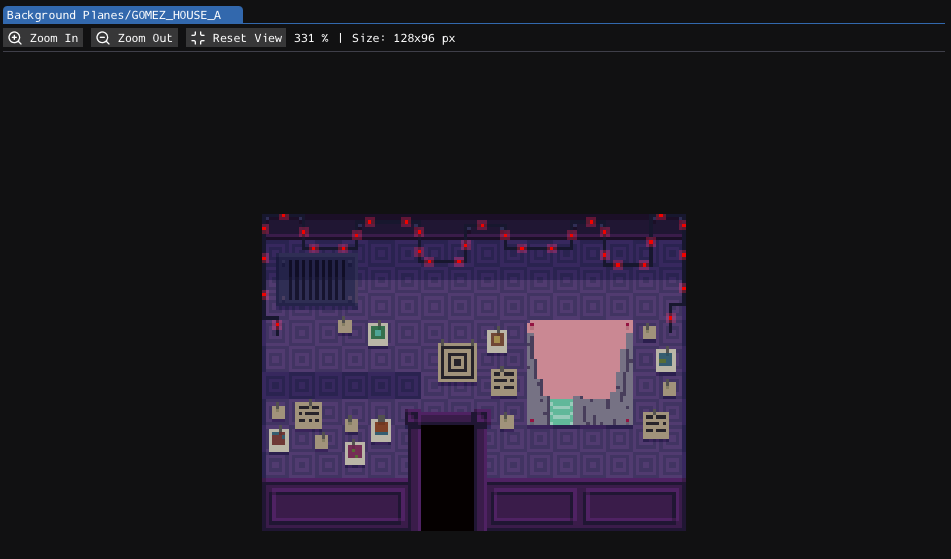
The toolbar buttons from left to right:

- Zoom In: Increases preview zoom.
- Zoom Out: Decreases preview zoom.
- Reset View: Restores the initial zoom and pan.
- Zoom Percent: Current zoom level as a percentage.
- Size: Texture dimensions in pixels.
Use the mouse wheel to zoom. Drag with the left or middle mouse button to pan.
Static textures are commonly used by background planes for decals, signs, walls, overlays, and other flat level details.
Animated Textures
Animated textures are images that store animation data. The data is usually stored as a .gif file or as a .fezanim.json file with a .png atlas texture:
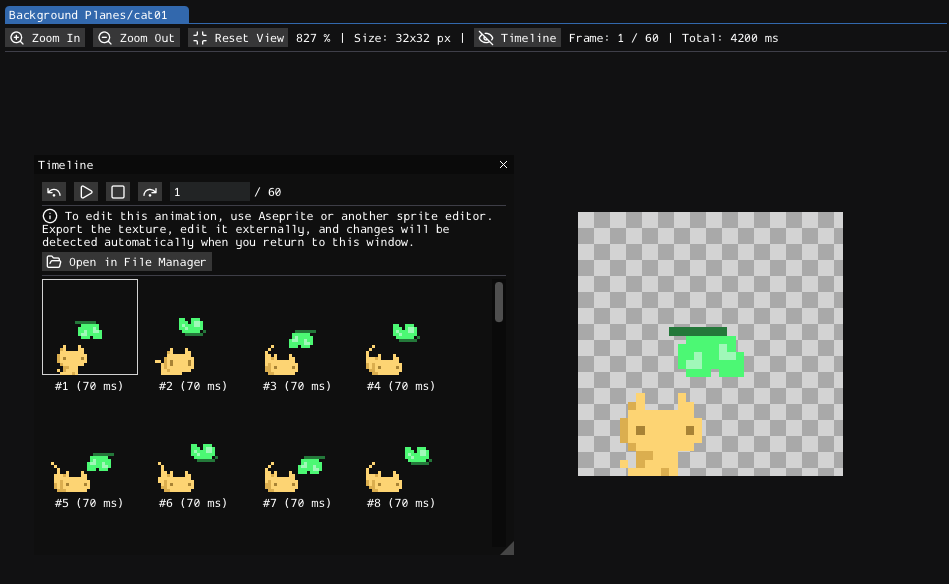
The toolbar is the same as for a static texture, but has additional buttons:
- Timeline: Opens or closes the Timeline window.
- Frame: Current frame and total frame count.
- Total: Total animation duration.
Animated textures are used by animated background planes and character animations.
Timeline
The previewer displays the current frame of the animation. To view other frames, you can use the timeline window.
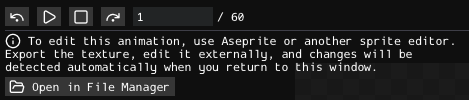
The timeline window has the following controls:
- Previous Frame: Moves to the previous frame and stops playback.
- Play / Pause: Plays or pauses the animation preview.
- Stop: Stops playback and returns to the first frame.
- Next Frame: Moves to the next frame and stops playback.
- Frame Number: Jumps to a specific frame.
- Open in File Manager: Opens the animation asset location.
The frame grid shows every animation frame with its duration in milliseconds. Select a frame to update the main preview.
The previewer does not edit the animation frames directly. Use Aseprite or another sprite editor to change the source texture and animation data. When editing extracted assets, Tex watches the opened file and refreshes the preview after external changes.
Background Plane Usage
Background planes can reference either static or animated textures.
When a background plane uses an animated texture, Eddy marks the plane as Animated in its Properties window and plays the animation in the level viewport:
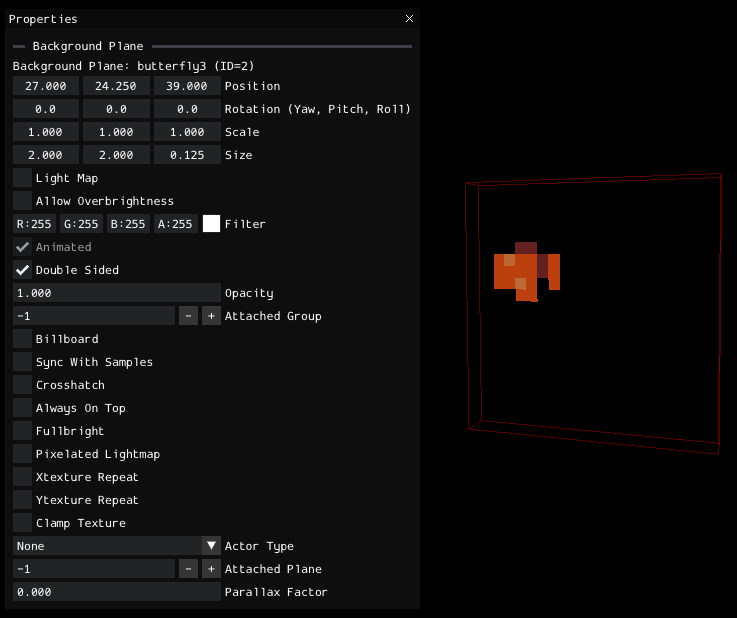
The plane size comes from the texture:
- A static texture uses the image width and height.
- An animated texture uses the animation frame width and height.
Background plane properties such as opacity, double-sided rendering, billboard mode, light map mode, texture repeat, and texture clamp are edited on the placed background plane in Eddy.
NPC Usage
NPCs use animated textures grouped by character name in the Character Animations/ folder:
Cat
├── Idle2
├── Idle3
├── Idle
├── Turn
└── Walk
Gomez sprites are also stored in the Character Animations/Gomez folder. You can preview them with Tex, but Eddy does not use those sprites for the player preview.