Save Files
Sally edits saved game progress, including the current location, collected items, and per-level state:
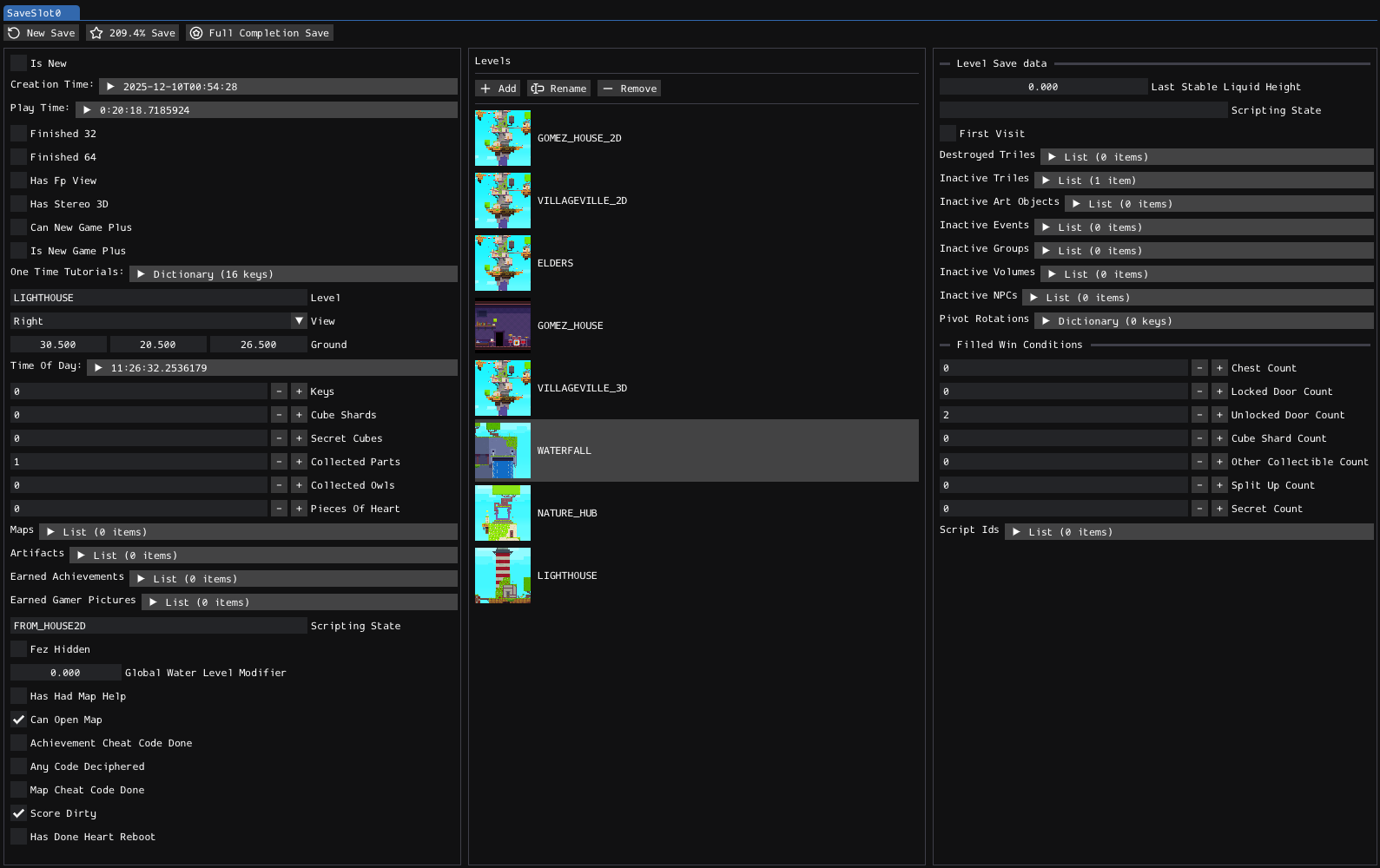
Opening the Files
From the FEZEditor welcome screen, click Open SaveSlot file to edit and select the FEZ folder inside the application data directory. The editor will try to open it for you. If that fails, navigate to the folder manually:
Sally supports PC-format save files only!
| OS | Default FEZ application data directory |
|---|---|
| Windows | %APPDATA%/FEZ/ |
| Linux | $XDG_DATA_HOME/FEZ/ or ~/.local/share/FEZ/ |
| macOS | ~/Library/Application Support/FEZ/ |
The directory should contain files such as SaveSlot0, SaveSlot1, and SaveSlot2, together with backup files.
Back up a save file before editing it!
Incorrect level names, instance IDs, script IDs, or progress values can make the game behave unexpectedly.
Layout
The toolbar has the following buttons, from left to right:
- New Save: Creates an empty save with no player progress.
- Full Completion Save: Creates a true 100% completion save.
- 209.4% Save: Creates a bugged maximum-percentage save.
Each button asks for confirmation before overwriting all data in the opened save.The slot file on disk will not be saved until you use File > Save File.
The editor itself is split into three sections:
- Save properties: Global player progress and current state.
- Levels: Per-level save records.
- Level Save Data: State for the selected level.
Properties
The left section edits global state:
| Group | Examples |
|---|---|
| Save status | Creation time, play time, new game state, 32/64 completion flags |
| Current location | Level, view direction, ground position, and time of day |
| Inventory | Number of collected collectibles |
| Collected data | Maps, artifacts, achievements, and gamer pictures |
| Unlock flags | First-person view, stereoscopic 3D, New Game Plus, and map use |
| Global state | Tutorial flags, scripting state, water modifier, and cheat flags |
Level names and scripting state values are stored as text. Use values that match the game's level and script data.
Level List
The middle section lists levels that have stored save data. Select a level to edit its state in the right column.
The toolbar has the following buttons, from left to right:
- Add: Creates a blank level save record.
- Rename: Changes the selected level name.
- Remove: Deletes the selected level's stored state.
Renaming a level record does not rename the level asset. The record name must match the actual level name used by the game.
Level Save Data
The right section edits state recorded for the selected level:
- Last Stable Liquid Height: Saved liquid height for levels with changing liquids, such as water and lava.
- Scripting State: Level-specific script state.
- First Visit: Whether the level is still considered unvisited. A value of
truemeans the level has not yet been visited. - Destroyed Triles: Triles removed during play.
- Inactive Objects: IDs of inactive triles, art objects, events, groups, volumes, and NPCs.
- Pivot Rotations: Saved rotation state for pivot art objects.
- Filled Win Conditions: Stored counters for collectibles, doors, secrets, and scripts used to track level completion.
IDs in these lists refer to instances in the corresponding level. Use Eddy and its Instance Browser or Script Browser to verify IDs before changing them.