Triles and Art Objects
Triles are the blocks used to build FEZ's levels. Art objects are larger trixel models used for props, mechanisms, and decorations.
Both use trixel art, FEZ's cube-based approach to creating 3D models. Trixel art is built from small cubes called trixels, giving models a pixel-art appearance while allowing them to be viewed from different perspectives.
With Chris, you can edit:
- Trile Sets (
.fezts.glb): Collections of triles used as level blocks, stored in theTrile Sets/folder. Chris edits one trile from the set at a time. - Art Objects (
.fezao.glb): Standalone trixel models used throughout levels, stored in theArt Objects/folder. Chris edits the whole model.
The trixel art editor looks like this:
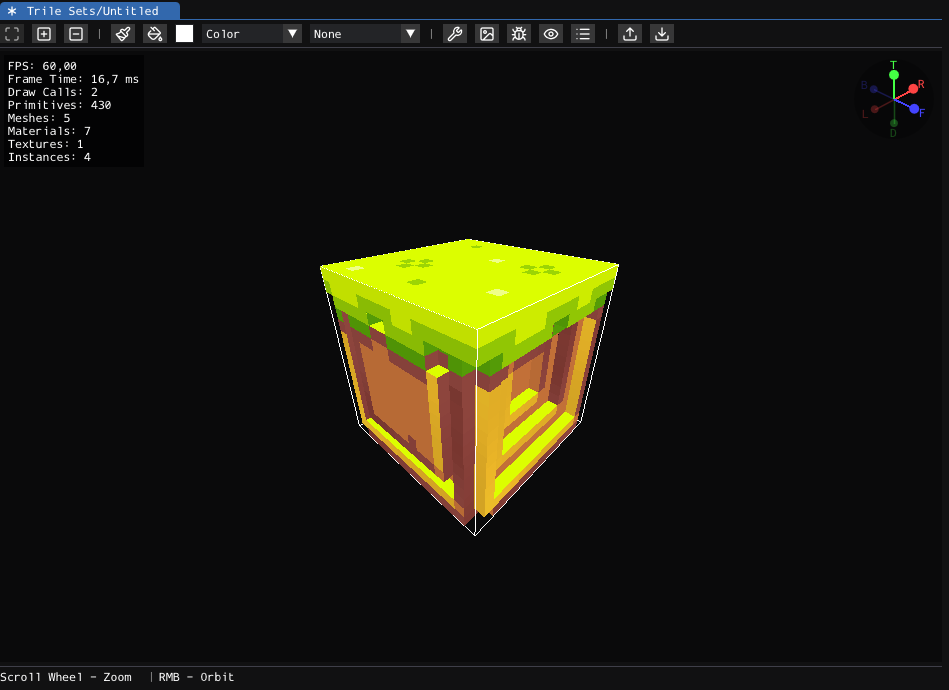
Although the game’s original editor used its own format for storing trixel art data, FEZEditor and FEZRepacker use binary glTF (.glb) files to store mesh geometry, textures, and metadata in a single file.
Layout
Toolbar
The toolbar has the following buttons, from left to right:

- Look: View-only mode. Orbit and inspect the model without editing trixels.
- Add: Adds missing trixels beside selected faces.
- Remove: Removes trixels from selected faces.
- Paint: Paints the hovered trixel face.
- Bucket: Fills a connected region of matching color, or paints a dragged region.
- Color Button: Opens the color or emission picker.
- Paint Mode: Switches between Color and Emission modes.
- Symmetry: Mirrors add, remove, paint, and bucket operations across the selected symmetry mode.
- Properties: Opens the Properties window.
- Texture: Opens the Texture Viewer.
- Wireframe: Toggles trixel wireframe display.
- Collision: Toggles collision visualization for trile sets.
- Trile Set: Opens the Trile Set window for trile sets.
- Export Texture: Saves the current color or emission texture as a PNG.
- Import Texture: Imports a PNG into the current color or emission texture.
Viewport
Below the toolbar is the main viewport. It renders the current trixel art model.
Status Bar
The status bar at the bottom of the viewport shows the active controls.

Gizmo
The orientation gizmo in the top-right corner labels the model faces. Use it to identify the Front, Right, Back, Left, Top, and Down faces while modeling surfaces or painting textures.
Properties
You can edit trixel art metadata with the Properties window:
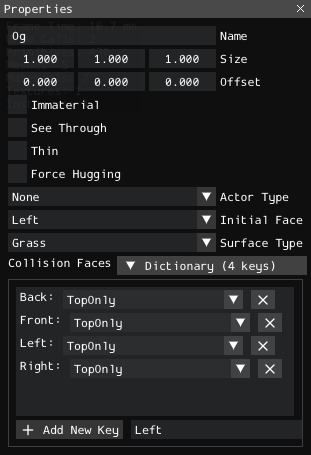
The available properties depend on the type of model being edited.
For a single trile:
- Name: Internal name of the trile.
- Size: Size of the trile model.
- Offset: Position offset from the trile's emplacement.
- Immaterial: Allows Gomez to pass through the trile.
- See Through: Allows objects behind transparent parts of the trile to remain visible.
- Thin: Allows Gomez to move in front of the trile from behind it.
- Force Hugging: Makes the trile snap to a nearby trile.
- Actor Type: Assigns special gameplay behavior.
- Initial Face: Sets the trile's initial facing direction.
- Surface Type: Controls the sound played when Gomez walks on the trile.
- Collision Faces: Defines collision behavior for each face orientation.
For an art object:
- Name: Internal name of the art object.
- Size: Size of the art object model.
- Actor Type: Assigns special gameplay behavior.
- No Sihouette (sic!): Prevents Gomez's silhouette from appearing through the art object.
Trile Set Management
Use the Trile Set window to select, add, remove, copy, or export triles:
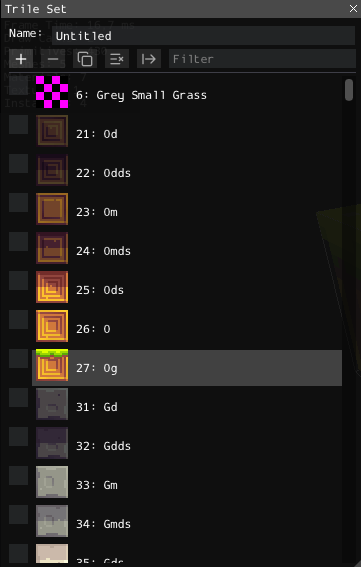
The window toolbar contains the following buttons and fields:
- Name: Displays and changes the trile set name.
- Add Trile: Creates a new default trile.
- Remove Selected: Deletes selected triles.
- Copy Selected: Duplicates selected triles into the same set.
- Clear Selection: Clears selected triles.
- Export Selected to File: Copies selected triles into another existing trile set.
- Filter: Filters the trile list by name.
Click a trile entry to make it active and display it in the viewport.
Use the checkboxes to select multiple triles for removal, copying, or export.
Remove Selected permanently removes the selected triles when the trile set is saved. If every trile is removed, Chris creates a new default trile so that the set is not empty.
Export Selected to File modifies and saves the selected target trile set immediately.
Editing the Trixels
Surfacing
Select the Add or Remove tool, then click or drag across faces to modify the model's surface.
Editing tools act on trixel faces. The hovered face is highlighted, and some tools can act on a rectangular region of faces.
The Remove tool always leaves at least one trixel, preventing the model from becoming empty.
The Add tool can restore missing trixels only within the model’s current bounds.
Change the model’s Size property before adding trixels outside those bounds.
Painting
Select the Paint tool to paint individual faces. Use the Bucket tool to fill a connected region of matching color, or drag with it to paint a rectangular region.
Chris has two paint modes:
- Color: Edits the RGB channels used for the visible surface color.
- Emission: Edits the alpha channel used for glow intensity.
In Color mode, the color picker includes a palette, common colors from the current texture, and recently used colors.
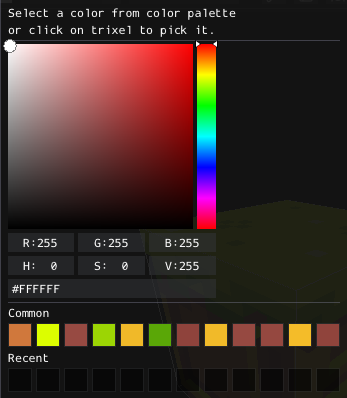
In Emission mode, the color button opens an emission intensity slider. The value is stored in the alpha channel of the texture.
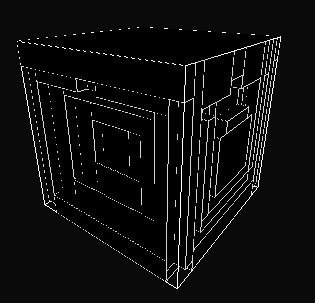
The Symmetry setting can mirror painting and surface edits:
- None: Applies edits only to the selected faces.
- Horizontal: Mirrors edits across the selected face's horizontal axis.
- Vertical: Mirrors edits across the selected face's vertical axis.
- Corners: Mirrors edits across both axes.
Texture Viewer
This viewer shows the flattened trixel texture for the current trile or art object.
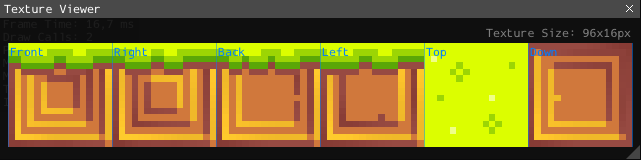
The texture is arranged as six face columns: Front, Right, Back, Left, Top, and Down.
Importing and Exporting Textures
Use the import and export buttons in the toolbar to edit textures in an external image editor.
Import and export behavior depends on the selected paint mode:
- Color: Export writes the RGB channels, and import replaces them.
- Emission: Export writes the alpha channel as a grayscale image. Import reads the image's red channel into the texture's alpha channel.
Imported PNGs must match the current texture size. Chris ignores an imported image if its dimensions do not match!
Debugging
Chris provides several tools for inspecting the model's generated geometry and collision data.
Collision
Trile collision is controlled by the Collision Faces property.
The collision visualization toggle shows the active trile collision in the viewport.
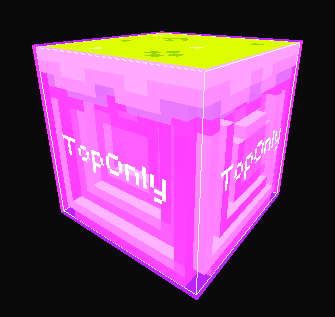
Each entry maps a face orientation to a collision type. You can adjust these values when creating triles such as solid blocks, one-way platforms, or blocks without collision.
The available collision types are:
- AllSides: Fully solid collision used for walls, obstacles, and other blocking triles.
- TopOnly: Allows Gomez to pass through the trile and stand on its top surface.
- None: Disables collision for the selected face orientation.
- Immaterial: Disables collision without making Gomez move in front of the trile.
- TopNoStraightLedge: Provides a solid top surface that Gomez cannot grab as a straight ledge.
Art objects do not contain collision data. Levels use triles to provide collision around art objects when needed.
Wireframe
Wireframe display overlays the visible trixel mesh.
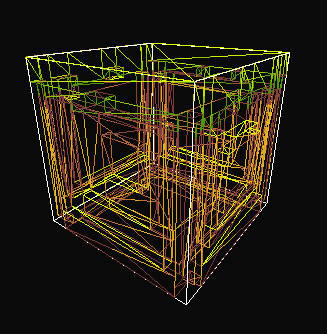
Use it to inspect the generated mesh geometry.
Geometry Statistics
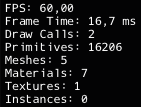
The statistics in the top-left corner of the viewport show rendering information such as frame time, draw calls, primitives, meshes, materials, textures, and instances.
Reference
A more detailed description of the properties is available in the FEZTS and FEZAO format references.
Details about how these models are textured and rendered are available in the Trixel Art Specification.