Scripting
A level script is a special sequence of data that controls events and logic specific to a particular game level. It manages things like volumes, environmental changes, and level-specific interactions without affecting the rest of the game.
What Is a Script
Scripts are designed to be simple and do not require the level designer to write a single line of code.
A single script consists of three components:
- Triggers (WHEN): when the script should run.
- Conditions (IF): checks what must be true before actions are executed.
- Actions (WHAT): what the script does.
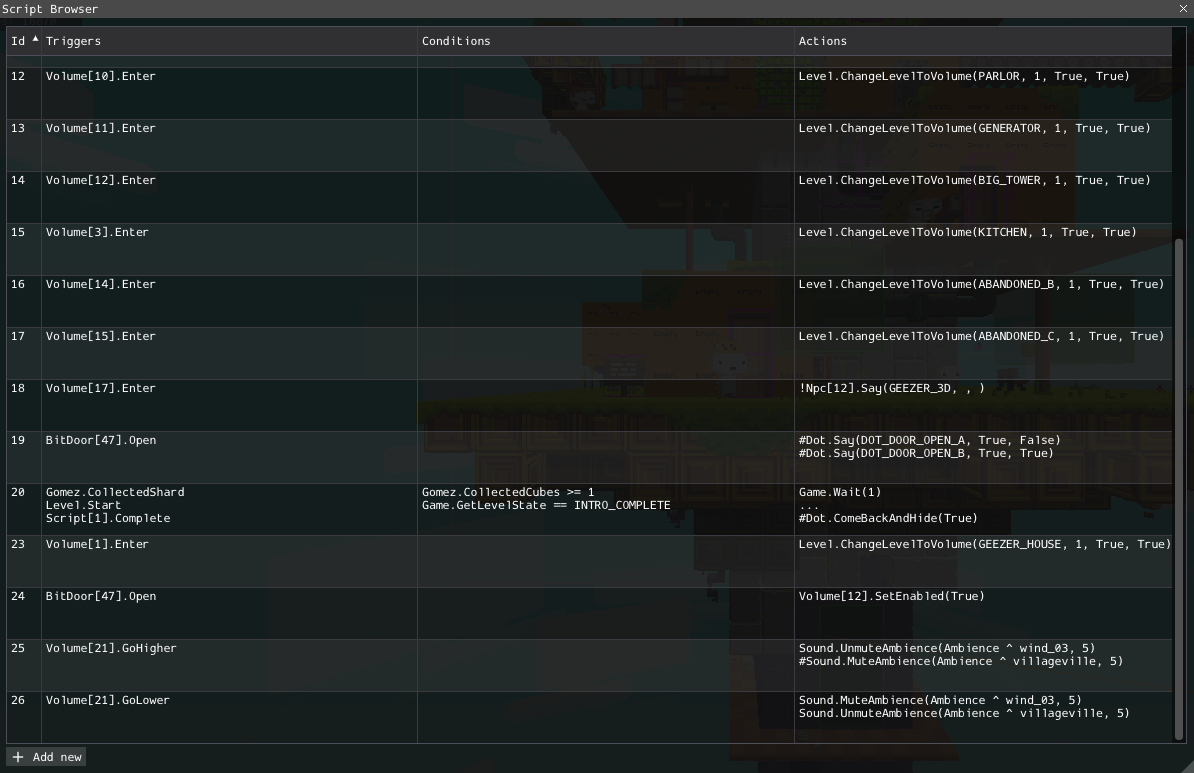
A list of scripts for the level currently open in Eddy is available in the Scripts Browser:
Script Browser
The main browser table has one row per script. Each row shows the script identifier (ID) and a short text preview of its triggers, conditions, and actions.
You can right-click a script row to:
- Add New: create a new empty script.
- Edit: open the script editor window.
- Clone: duplicate the selected script.
- Delete: remove the selected script.
The Add new button below the table also creates a new script and opens it for editing.
Script Editor
When you edit a specific script, an editor window opens:
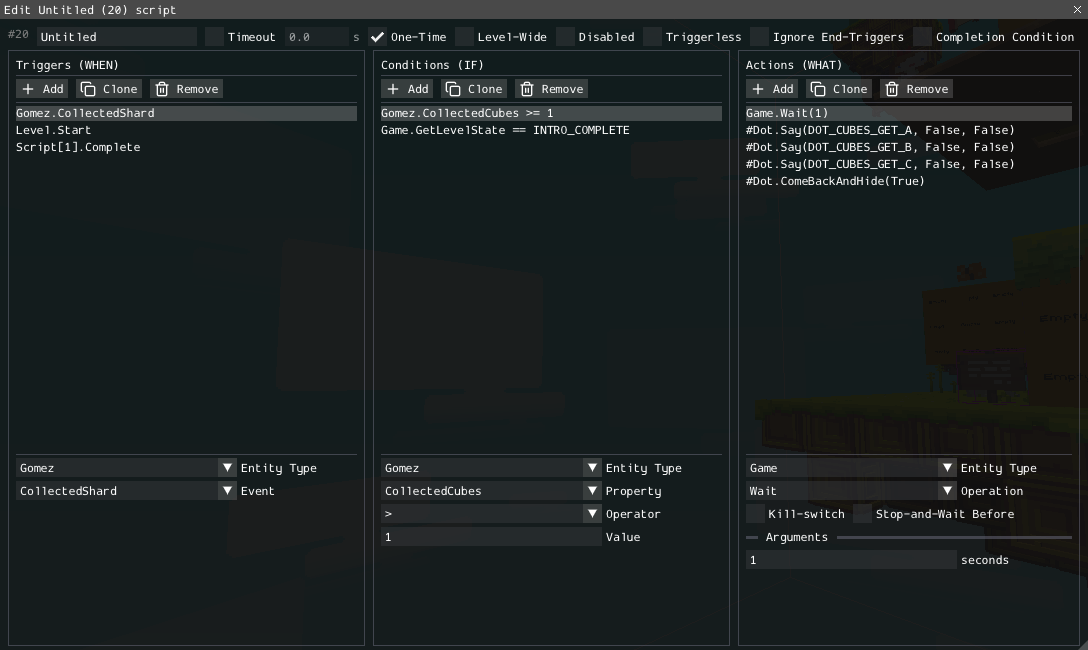
Each component column has Add, Clone, and Remove controls. You can select an item in a column to edit its fields in the form at the bottom of that column.
Script Settings
The top row controls script-level settings:
| Setting | Description |
|---|---|
| Name | Display name for the script |
| Timeout | Optional time limit, in seconds |
| One-Time | Allows the script to run only once |
| Level-Wide | Makes the one-time flag apply at level scope |
| Disabled | Prevents the script from running |
| Triggerless | Allows the script to be evaluated without a trigger |
| Ignore End-Triggers | Ignores end-trigger events such as Volume.Exit after Volume.Enter |
| Completion Condition | Marks the script as a completion condition |
Entity Types and Identifiers
Every trigger, condition, and action is associated with an entity. Here are a few examples:
| Entity | Description |
|---|---|
| Game | Global game state |
| Level | Current level state |
| Gomez | Player state |
| Volume[3] | Volume with ID #3 |
| ArtObject[12] | Art object instance with ID #12 |
| Group[5] | Trile group with ID #5 |
Some entities do not have an identifier (ID). These are typically static, global entities.
When an entity is an interactable level object, you can use Pick next to the ID field, then click the matching instance in the Instance Browser. This avoids typing the wrong ID by hand.
The scripting class is not always the same as the stored object type. For example, PushSwitch[id] targets a trile group whose actor type is a PushSwitch, and PivotHandle[id] targets an art object whose actor type is PivotHandle. For more information, refer to the actor type list.
Adding Triggers
A trigger defines when the script should be checked. To add one:
- Click
AddinTriggers (WHEN). - Choose the
Entity Type. - Enter or pick the
Identifier, if the entity needs one. - Choose the
Event.
This example evaluates the script when Gomez enters volume 3:
Volume[3].Enter
Some triggers have an end trigger. For example, Volume.Enter has Exit as its end trigger, and PushSwitch.Push has Lift. End triggers are used by the game to finish or cancel the trigger state. Use Ignore End-Triggers only when the script does not need to handle that paired event.
Adding Conditions
A condition checks a property before actions run. To add one:
- Click
AddinConditions (IF). - Choose the target class and ID.
- Choose the property.
- Choose the comparison operator.
- Enter the comparison value.
This example condition checks whether Gomez has collected 8 cube shards:
Gomez.CollectedCubes >= 8
Conditions use values as text in the editor. Use values that match the property's type:
| Type | Example values |
|---|---|
| bool | true, false |
| int | 0, 1, 8 |
| float | 0.0, 1.5, -3.14 |
| string | level names or state values |
If a script has multiple conditions, enter them as requirements that must all be true for the script to proceed.
Adding Actions
An action performs work after the triggers and conditions pass. To add one:
- Click
AddinActions (WHAT). - Choose the target class and ID.
- Choose the operation.
- Fill in the operation arguments.
This example changes the current level to NEW_LEVEL with additional parameters:
Level.ChangeLevelToVolume(NEW_LEVEL, 1, true, false, false)
Here is the action's signature:
levelName: string, toVolume: int, asDoor: bool, spin: bool, trialEnding: bool
Enter the argument values in the same order as the signature:
NEW_LEVEL, 1, true, false, false
Action Properties
Actions have two optional flags:
| Flag | Display prefix | Description |
|---|---|---|
| Stop-and-Wait Before | # | Stops script progression at this action until it can continue. |
| Kill-switch | ! | Allows the action to stop when the script is killed. |
Some actions are long-running. These include waits, camera fades, level transitions, moving objects, Dot dialogue, and similar actions that can take time to finish.
Complex Examples
The previous examples examined individual parts of the script. To show how these parts work together, here are a few examples of more complex scripts:
Run Logic When Gomez Enters a Volume
Use this for doors, camera focus areas, puzzle zones, and scripted level events.
| Part | Preview |
|---|---|
| Trigger | Volume[3].Enter |
| Condition | Gomez.CollectedCubes >= 8 |
| Action | Level.ChangeLevelToVolume(...) |
Start a Moving Group
Use a trigger from a volume, switch, or level start, then call a group path action.
| Part | Preview |
|---|---|
| Trigger | Switch[2].Push |
| Action | Group[4].StartPath(...) |
The group must have a path assigned and be configured as needing a trigger.
Chaining Scripts Together
The Script class can enable, disable, or evaluate another script.
| Part | Preview |
|---|---|
| Action | Script[7].SetEnabled(true) |
| Action | Script[7].Evaluate() |
Use this to split complex behavior into smaller scripts instead of putting every action in one script.
Troubleshooting
If a script does not run:
- Check that it is not
Disabled. - Check that the trigger's ID points to the correct object.
- Check that every condition can pass.
- Check that argument values match the expected parameter types.
- Check the actor type restrictions in the scripting reference. For example,
Switch[id]only applies to switch-like trile groups. - For one-time scripts, check whether the script has already run.
Reference
A complete list of available script classes, events, conditions, and actions is provided in the Scripting Reference.