World Map
The world map is a tree of level nodes. Each node represents a level, and each connection describes how that level branches from its parent on the map:
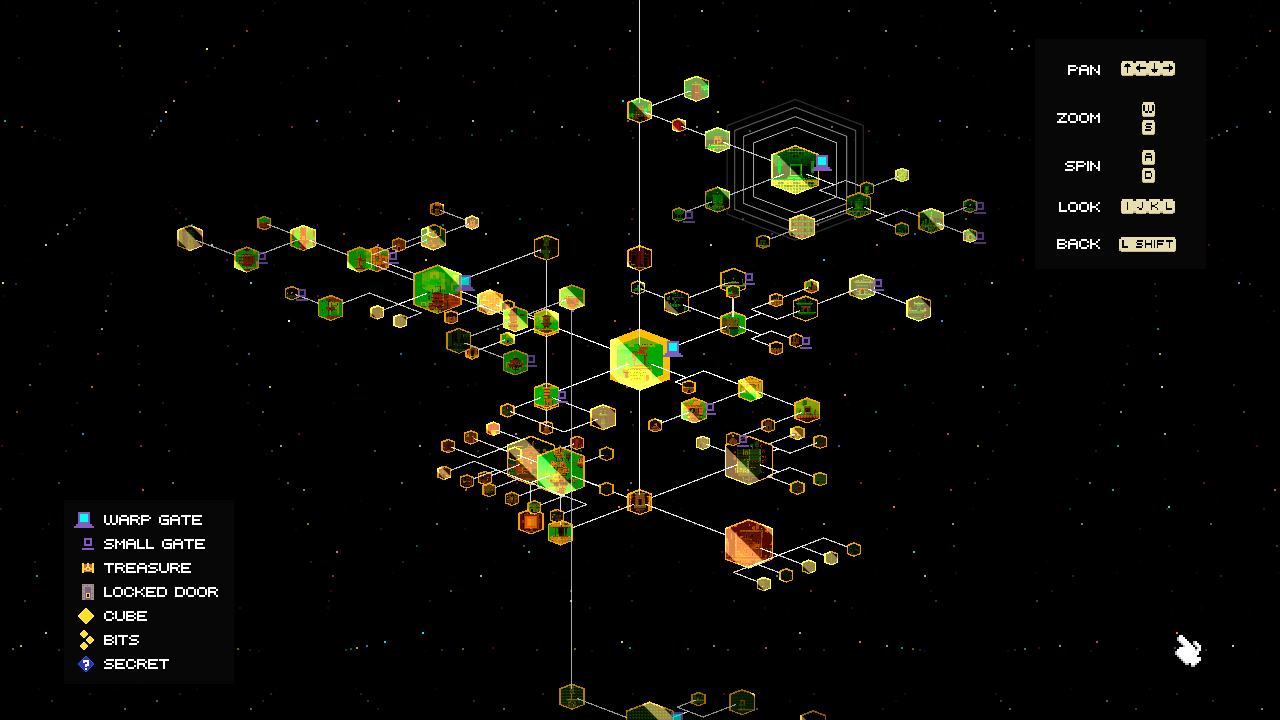
With Jade you can create new world map files (.fezmap.json) and edit the existing MapTree.fezmap.json used by the game:
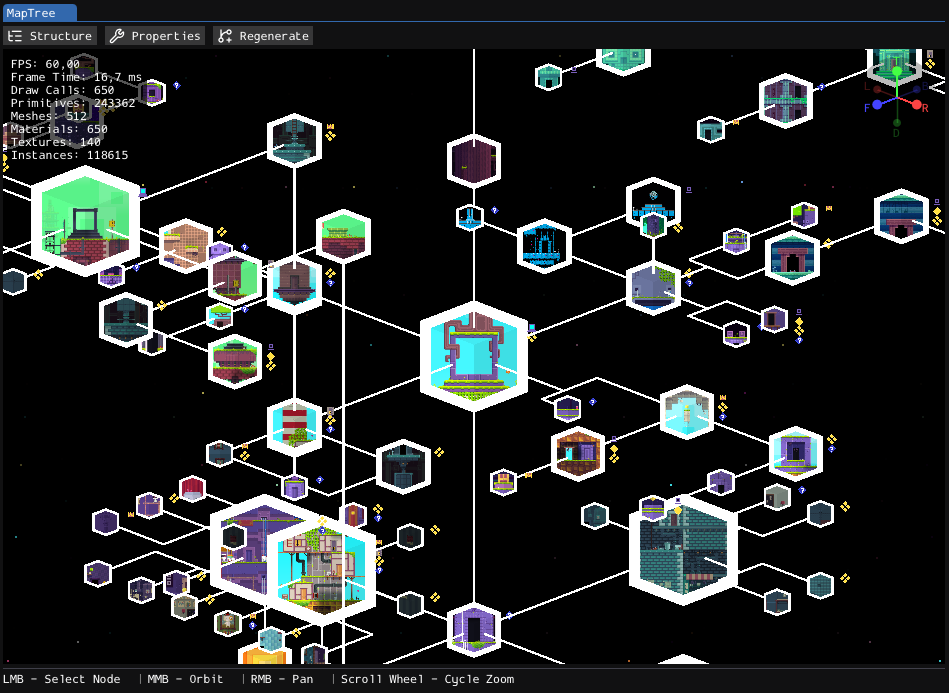
Layout
Toolbar
The toolbar has the following buttons, from left to right:

- Structure: Opens the Map Tree window.
- Properties: Opens the Properties window.
- Regenerate: Rebuilds the map tree from scratch.
Viewport
Below the toolbar is the main viewport. It renders the full world map with level thumbnails, connection lines, gate icons, and collectible indicators.
Selecting a node focuses the camera on it and opens its editable data in the Properties window.
Status Bar
The status bar at the bottom of the viewport shows the active controls.

Structure
The Map Tree window shows the world map hierarchy.
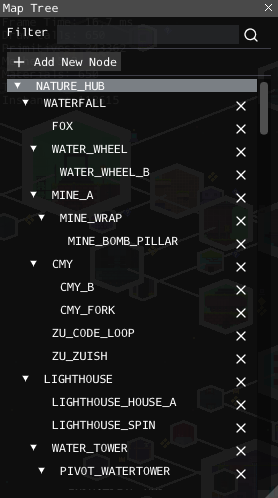
This window allows you to:
- Filter nodes by level name.
- Select a node.
- Add a new node from a level asset.
- Remove existing nodes.
When you add a new node, Jade asks you to select a level from the Levels/ folder. The editor tries to place it under an existing node by checking level transition scripts in both directions:
- If the new level links to an existing level, that existing level is used as the parent.
- If an existing level links to the new level, that existing level is used as the parent.
- Otherwise, the new node is added under the root node.
When you remove a node, its entire child branch will also be removed.
Properties
You can edit each node's properties with the Properties window:
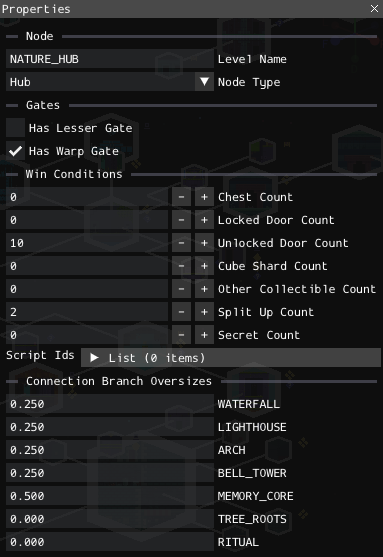
Each node has the following properties:
- Level Name: Level represented by this map node. Changing this also changes the thumbnail inside the node.
- Node Type: Visual map node type:
Node,Hub, orLesser. - Parent Face: Direction this node branches from its parent.
- Has Lesser Gate: Shows the lesser gate icon next to the node.
- Has Warp Gate: Shows the warp gate icon next to the node.
The root node has no parent face.
Win Conditions
These properties define what the player must complete before the node is considered cleared on the map, indicated by the golden tint in the screenshot above.
- Chest Count: Number of chests that must be opened.
- Locked Door Count: Number of locked doors that must be opened.
- Unlocked Door Count: Number of normal doors that must be opened.
- Cube Shard Count: Number of cube shards that must be collected.
- Other Collectible Count: Number of collectibles not counted by another field that must be collected.
- Split Up Count: Number of cube bits that must be collected.
- Secret Count: Number of secrets that must be found.
- Script IDs: Level script IDs that must be completed. Use Eddy to find the appropriate IDs.
These counts affect world map completion display. They do not create the collectibles or scripts themselves.
Connection Branch Oversizes
When the selected node has child connections, the Properties window shows one branch oversize value per child.
Branch oversize adjusts the length of that connection line. Use it to give crowded branches more space or pull related nodes closer together.
Editor Behavior
The editor computes node positions from the tree structure, node types, connection faces, and branch oversize values.
The layout is not edited by dragging nodes directly. To change the map layout, you should edit:
- The parent/child structure.
- Each node's
Node Type. - Child connection
Parent Facevalues. - Connection branch oversize values.
If several connections use the same face, the editor offsets them so the branches can be seen separately. Lesser nodes may also be moved to another free face in the preview when they would overlap a larger branch.
Regenerating the Map
Although the world map is self-contained, it can be generated from level files. The generator scans level-changing scripts to construct a tree. You can then refine it using Jade or construct the tree manually.
The generator uses an algorithm based on the game's original editor. Regenerating the map from the original game levels with NATURE_HUB as the root produces the exact copy of the original map.
Regeneration is based on script data, so levels without clear transition scripts may need to be added or adjusted manually afterwards. The generator looks for script actions on the Level scripting object that change levels. It resolves ReturnToLastLevel to the parent level. For each transition, it uses the script trigger volume's first orientation as the branch direction when available.
The generator contains hardcoded overrides for some original game levels, including connection directions, skipped links, and branch oversize values. For custom levels or arbitrary ordering, you may need to adjust these connections manually through the node properties.
Generating Map Screen Thumbnails
Each node displays a thumbnail selected based on the level name. The images are stored in the Other Textures/map_screens folder.
To generate a thumbnail for a level node, you need to:
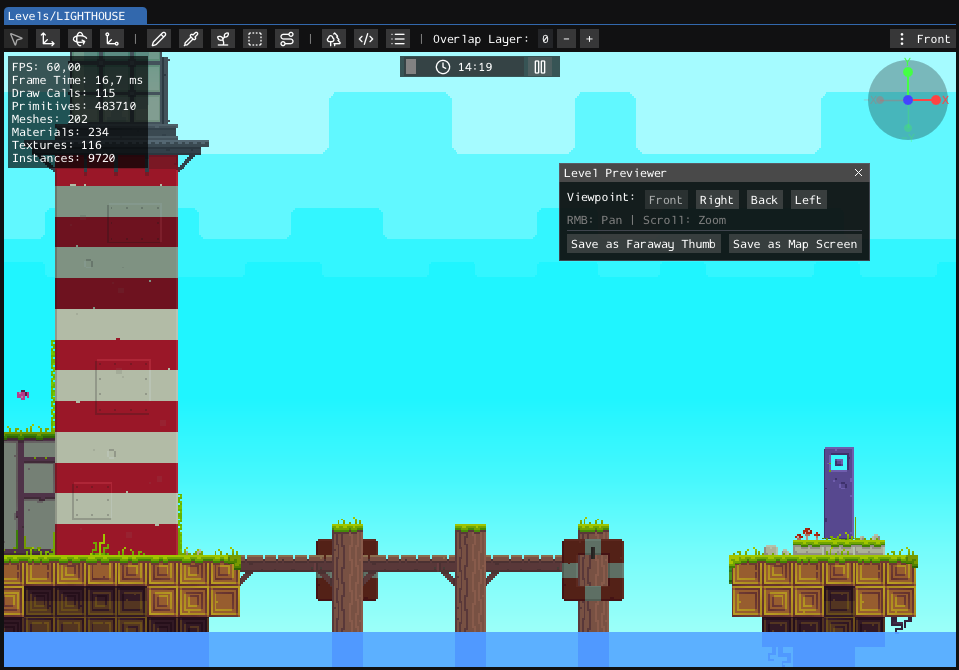
- Open the level in Eddy.
- Open the tool via
Editor > Eddy > Level Previewer...in menu bar. - Move the camera with the mouse or change its view to your preferred view for the thumbnail.
- Click Save as Map Screen to save the thumbnail in the compatible location and format for the world map.
Here is an example of the Level Previewer open in Eddy:
Reference
A more detailed description of the properties is available in the FEZMAP format reference.
Detailed information about level scripting is available on the Scripting page.