Sprite Fonts
FEZ (more specifically, the XNA Framework) uses sprite fonts to display dialogue, menus, prompts, and other text. Each character is represented by an image in a texture atlas and metadata that controls how it is positioned and spaced.
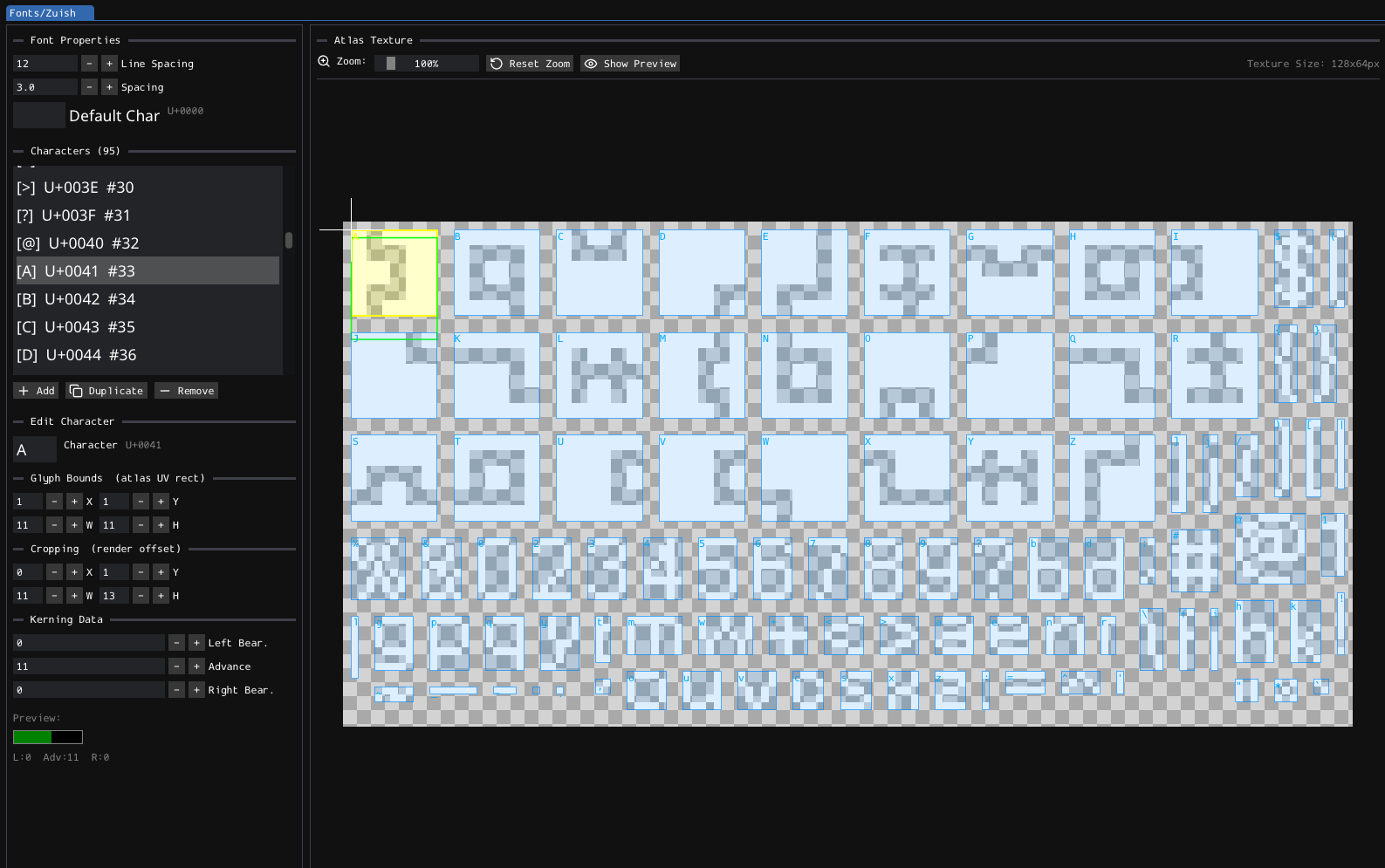
With Zu, you can edit this font metadata and preview the result:
Sprite fonts are stored in the Fonts/ folder. Each converted font consists of two same-named files with the .fezfont prefix:
- Font properties and per-character layout data, stored in a
.jsonfile. - Texture atlas containing the character images, stored in a
.pngfile.
The game includes big and small fonts for Latin, Chinese, Japanese, and Korean text, as well as special fonts such as Zuish, which uses Latin characters to encode Zu text.
Zu edits the .fezfont.json metadata, but it cannot edit the atlas image. Use an external image editor to modify the .fezfont.png file. When the FEZEditor window regains focus, the editor detects changes to the PNG and refreshes the displayed atlas.
Layout
The editor is split into two main sections:
- Font Properties and Characters: Edits the font metadata.
- Atlas Texture: Displays the font atlas and character bounds.
The atlas highlights the selected character and shows its glyph and cropping rectangles.
Font Properties
This section controls settings shared by the entire font:
- Line Spacing: Vertical distance between lines of text.
- Spacing: Extra horizontal space between characters.
- Default Char: Character used by Zu's preview when the requested character is missing.
Keep the space character (U+0020) in FEZ’s main big and small fonts. The game may override their configured Default Char and uses space as the fallback character.
Characters
The character list shows every character in the font, together with its Unicode code point and index.
The buttons below the list perform the following actions:
- Add: Adds a new
?character with default layout values. - Duplicate: Copies the selected character and its layout values.
- Remove: Removes the selected character and its layout data.
Adding or duplicating a character does not add its image to the atlas.
New characters begin at the top-left corner of the atlas, while duplicated characters share the original character's bounds. Edit the atlas image and update the bounds before using the new entry.
Each character should appear only once in a font. Duplicate character entries may cause the game to display the wrong glyph.
Select a character from the list or click its bounds in the atlas to edit it.
Character Properties
Each character has the following properties:
- Character: Unicode character represented by the entry.
- Glyph Bounds: Rectangle containing the character image in the atlas.
- Cropping: Offset used to position the character when it is drawn.
- Left Bearing: Space before the character image.
- Advance: Width used to advance to the next character.
- Right Bearing: Space after the character image.
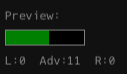
The bar below the kerning fields visualizes the left bearing, advance, and right bearing:
When adding a character, update its glyph bounds, cropping, and kerning values so that it is sampled and positioned correctly.
Atlas
The atlas viewport displays the font texture and overlays each character's bounds. It is used for inspection and selection; edit the rectangles numerically in the character properties.
The toolbar and viewport provide the following controls:
- Zoom: Changes the atlas magnification from 10% to 800%.
- Reset Zoom: Fits the atlas into the viewport.
- Show Preview: Opens the font preview window.
- Mouse wheel: Zooms around the cursor.
- Right-drag: Pans the atlas.
- Left-click: Selects a character.
Preview
Use Show Preview to test the font with editable sample text:
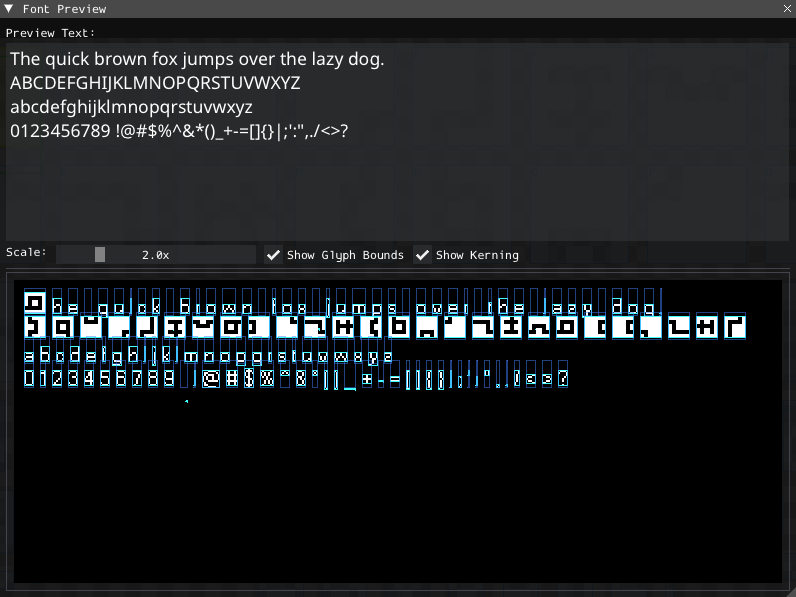
The preview window can change the display scale, show glyph bounds and kerning, and test missing characters or multiline text.
Use the preview after changing character bounds, cropping, spacing, or kerning to check for overlaps and inconsistent alignment.
Reference
For information about editing the text displayed by these fonts, see the Localization page.
A more detailed description of the font properties is available in the FEZFONT format reference.