Getting Started
Before using the editor, you need to:
- Obtain a copy of FEZ (preferably the PC 1.12 version, which is available on Steam or GOG).
- Download the stable release of FEZEditor.
Opening Assets
When you launch FEZEditor, the first thing you see is the splash screen:
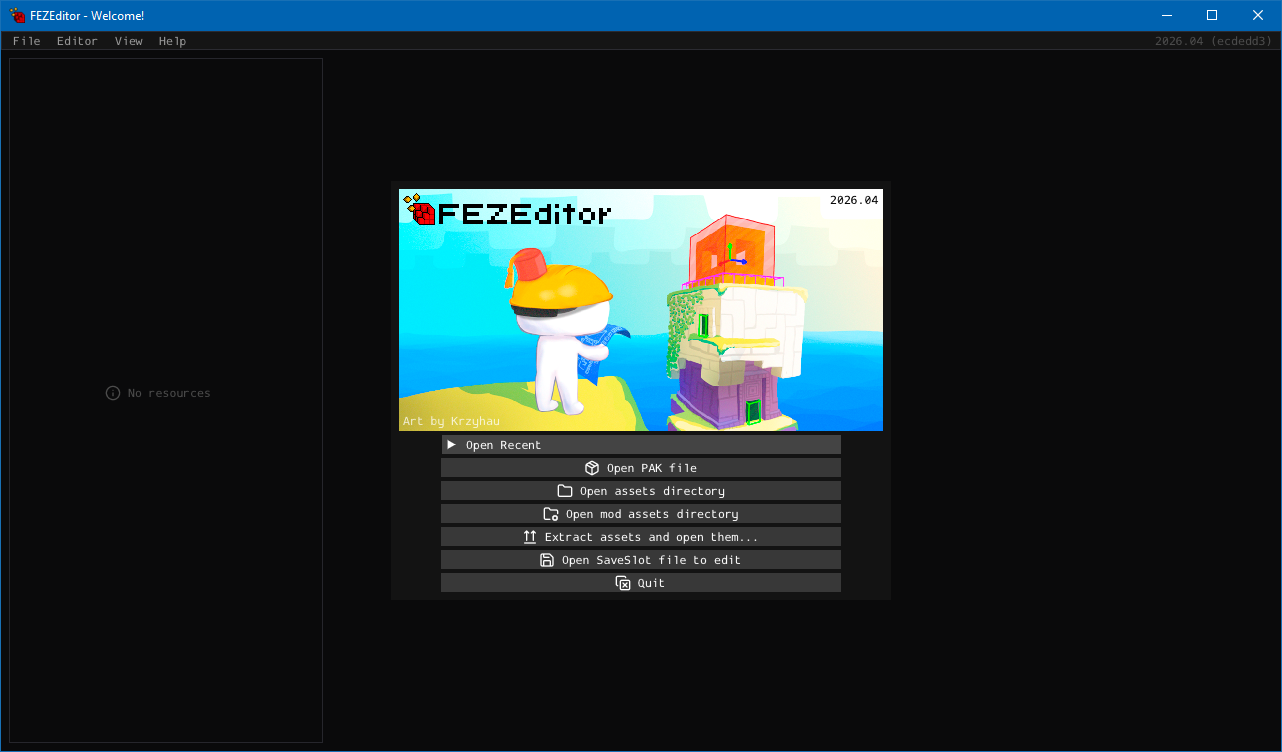
From here you can start working with assets depending on your goal:
-
Open PAK file - selects one of the PAK files. In this mode you cannot edit assets.
-
Open mod assets directory - select the
Assetsfolder inside your mod directory. Additional read-only asset resources can be picked, allowing assets in mod directory to reference them. -
Open assets directory - if you have assets extracted by FEZEditor or FEZRepacker, select the folder.
-
Extract assets and open them - select PAK archive(s), then choose a destination folder. The editor will extract all files and automatically open the directory for editing.
-
Open SaveSlot file to edit - select the
FEZfolder in the application data directory (the editor will open it for you). Refer to the Save Slots page.
It is recommended to start with Option 4 as a way to familiarize with the editor - select all 4 PAK files from the Content folder (Essentials.pak, Other.pak, Music.pak and Updates.pak) and tinker around the original game assets.
Once you're familiarized with the editor and want to create your own mod, it is recommended to use Option 2 instead.
Interface Overview
After opening a workspace, the editor would look like this:
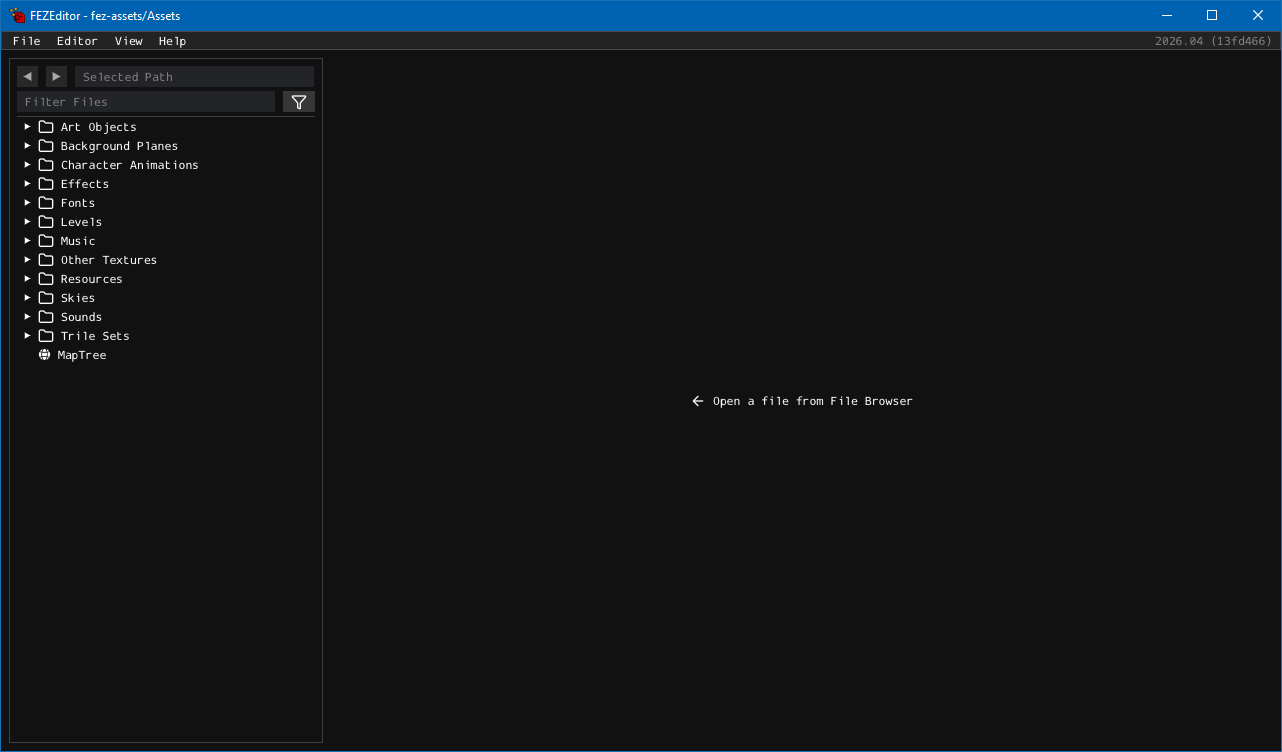
Here are the main elements:
-
At the top left is Main Menu, and the editor version is shown on the top right.
-
In the center left is the File Browser, which displays folders and assets in the workspace.
-
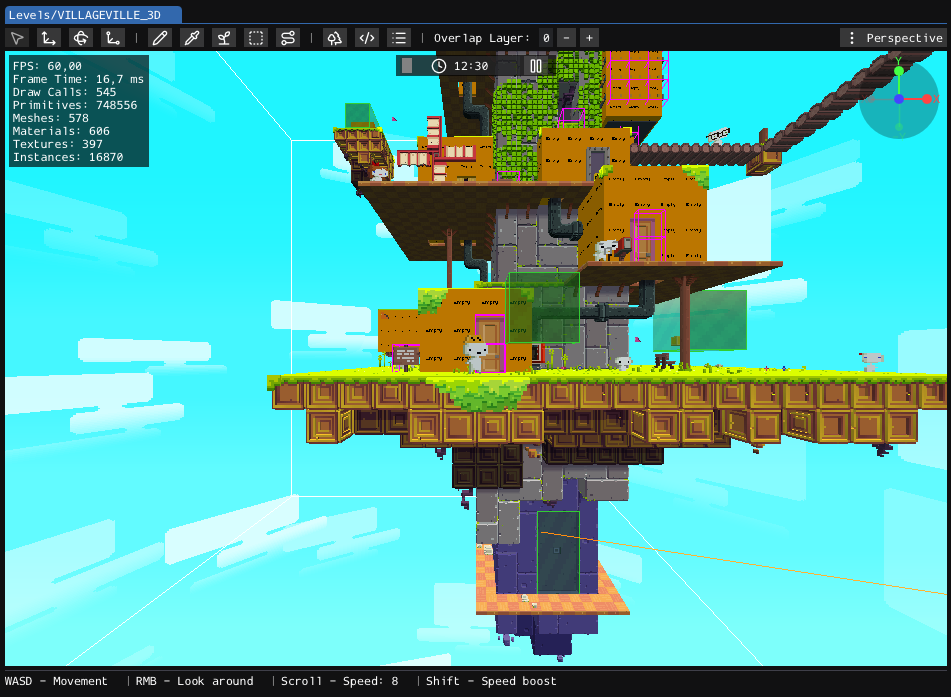
On the right is the editing area. It shows the active editor with its toolbar, property panels, and viewport. Multiple assets can be open simultaneously, each in its own tab.
Here is an example with the level editor named Eddy:
Asset Editors
In order to open an asset for editing or viewing, double-click it in the File Browser.
Each asset type opens its own dedicated editor or viewer. Each editor has its own proper name because:
- Giving editors names is fun.
- It gives an association of what each editor does.
Here is a list of editors and the assets each of them edits:
- Eddy - Levels (
.fezlvl.json) - Chris - Trile Sets (
.fezts.glb) and Art Objects (.fezao.glb) - Luke - Skies (
.fezsky.json) - Jade - World Map (
.fezmap.json) - Mu - NPC Metadata (
.feznpc.json) - Diez - Tracked Songs (
.fezsong.json) - Zu - Sprite Fonts (
.fezfont.json) - Po - Localization Files (
.feztxt.json) - Sally - Save Slots (
SaveSlot*)
Here is a list of viewers. You can use them to open resources that are edited externally:
There are special cases described on separate pages: