Skies
One of the most beautiful yet complex aspects of the game is its skies. Rather than using a skybox, FEZ composes each sky from multiple textures and meshes whose appearance and movement can change with the time of day.
With Luke, you can create new sky definitions and edit the existing ones used by the game:
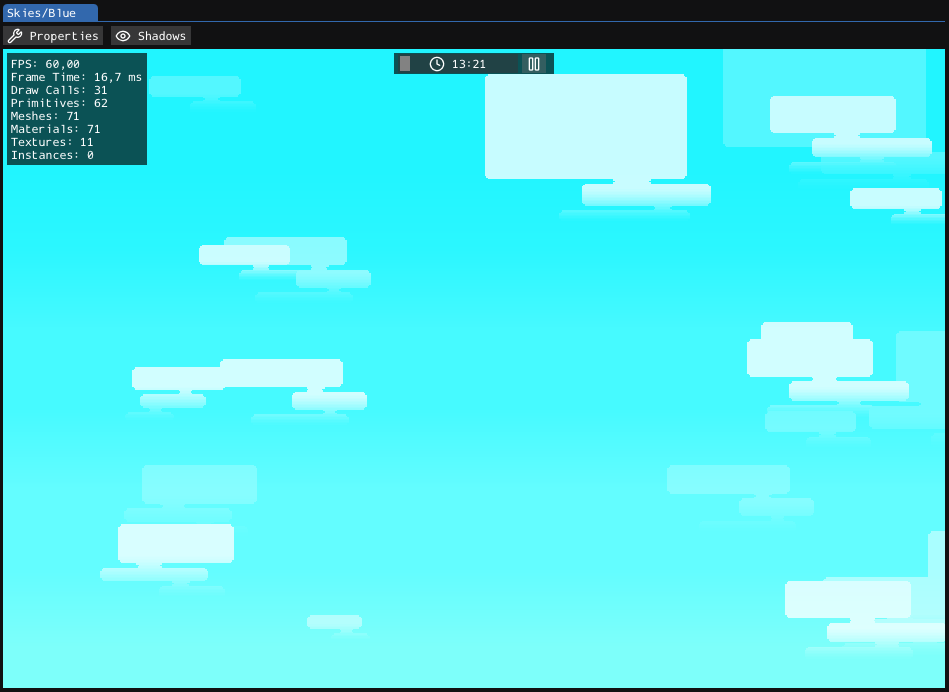
Skies are stored in the Skies/ folder. Each sky definition has a .fezsky.json file and a same-named folder alongside it containing the sky's .png files:
├── Cave
│   ├── CaveBack.png
│   ├── ELDERS.png
│   ├── OUTERSPACE_A.png
│   ├── OUTERSPACE_BACK.png
│   ├── OUTERSPACE_B.png
│   ├── OUTERSPACE_C.png
│   ├── TREE_BRANCHES_BG.png
│   ├── ZU_CAVE_BG_A.png
│   └── ZU_CAVE_BG_B.png
├── Cave.fezsky.json
Texture names in a sky definition are paths relative to its same-named folder. For example, the CaveBack texture referenced by Cave.fezsky.json is loaded from Skies/Cave/CaveBack.png.
When you edit an extracted sky image, the editor watches the texture file and refreshes the preview when it detects changes.
Layout
Toolbar
The toolbar has the following buttons, from left to right:

- Properties: Opens the Properties window.
- Shadows: Toggles shadow preview in the viewport.
Viewport
The main viewport shows a live preview of the sky. It renders an approximation of the sky and its elements:
- Background texture
- Cloud textures
- Sky layers
- Stars, when configured
- Shadows, when the shadow preview is enabled
Luke’s preview approximates the game’s sky rendering. A sky may look slightly different when viewed in Eddy or in the game.
Clock
Above the viewport is a clock control. You can advance or pause time with it to preview how the sky will look at different times of day.
Properties
The Properties window contains the editable sky data:
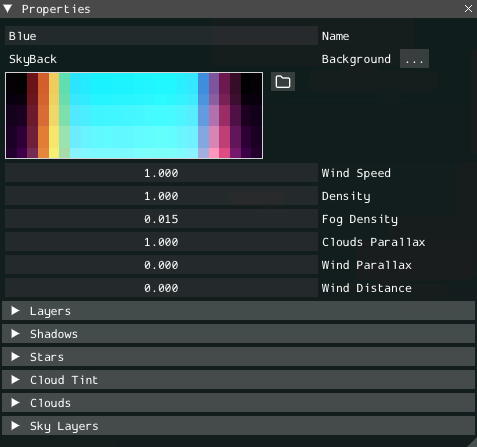
The main settings for the sky definition are:
- Name: Sky name. This should match the sky folder name.
- Background: Background texture for the sky.
- Wind Speed: Controls the speed of wind-driven movement.
- Density: Multiplier for how many cloud instances are drawn.
- Fog Density: Fog strength used by the sky.
- Clouds Parallax: Controls the strength of cloud parallax.
- Wind Parallax: Controls how wind movement responds to parallax.
- Wind Distance: Controls the distance of wind-driven layer movement.
Texture fields show a preview when the referenced texture exists. You can use the ... button to pick a texture from the current sky folder. Use the folder button next to a preview to open that texture in the native file manager.
Layers
This section controls how sky layers are placed and repeated.
- Vertical Tiling: Repeats layers vertically.
- Horizontal Scrolling: Enables horizontal layer scrolling.
- No Per Face Layer X Offset: Disables per-face X offset for layers.
- Layer Base Height: Sets the starting vertical position of the layers.
- Layer Base Spacing: Sets the vertical spacing between layer depth groups.
- Layer Base X Offset: Sets the layers' base horizontal offset.
- Horizontal Distance: Controls horizontal texture-coordinate spacing.
- Vertical Distance: Controls vertical texture-coordinate spacing.
- Inter Layer H Distance: Adds horizontal spacing based on layer depth.
- Inter Layer V Distance: Adds vertical spacing based on layer depth.
Shadows
This section selects the shadow texture and controls its behavior:
- Shadows: Texture used for sky shadow projection.
- Shadow Opacity: Shadow strength.
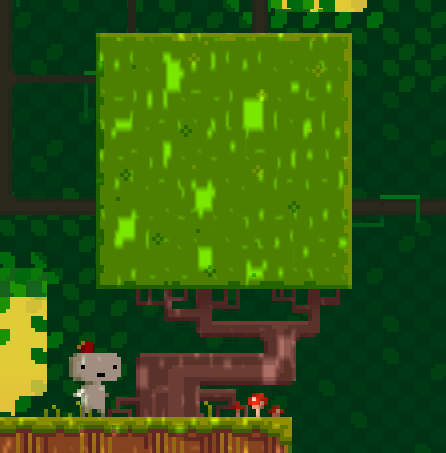
- Foliage Shadows: Enables foliage-style shadow behavior.
Sky shadows use the CloudShadowEffect shader.
If the Shadows toggle in the toolbar is active, the editor displays a cube that demonstrates how the selected shadow texture is projected:
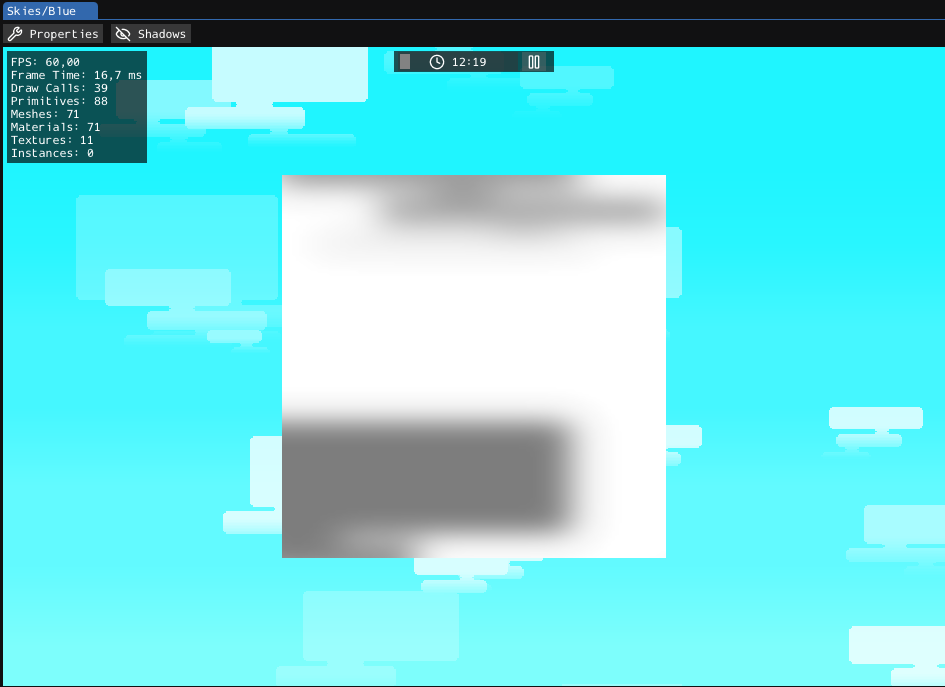
There are two types of shadows: regular and foliage. Foliage shadows look like this (uses the Canopy shader pass):
Although Eddy uses the same sky renderer as Luke, it does not display sky shadows to keep the level visible.
Stars
This section selects the texture used for stars, which are visible at night.
Cloud Tint
This section selects a texture used to tint the clouds.
Clouds
This section lists the cloud textures used by the sky. Cloud textures are semi-transparent and colorless.
Clouds use the CloudsEffect shader.
To add a new cloud texture, use the Add button. Use the trash button next to an entry to remove it.
Cloud count in the preview is affected by the Density property.
Cloud movement is affected by the wind and parallax properties.
Sky Layers
This section lists individual sky layer textures.
Each layer has the following properties:
- Name: Texture used by the layer.
- In Front: Draws the layer in front of the main sky composition.
- Opacity: Layer opacity.
- Fog Tint: Amount of fog tint applied to the layer.
Use Add to pick a new layer texture from the current sky folder. Expand a layer entry to edit its settings or remove it.
Reference
A more detailed description of the properties is available in the FEZSKY format reference.